
macOS
Menu bar app · macOS 14+
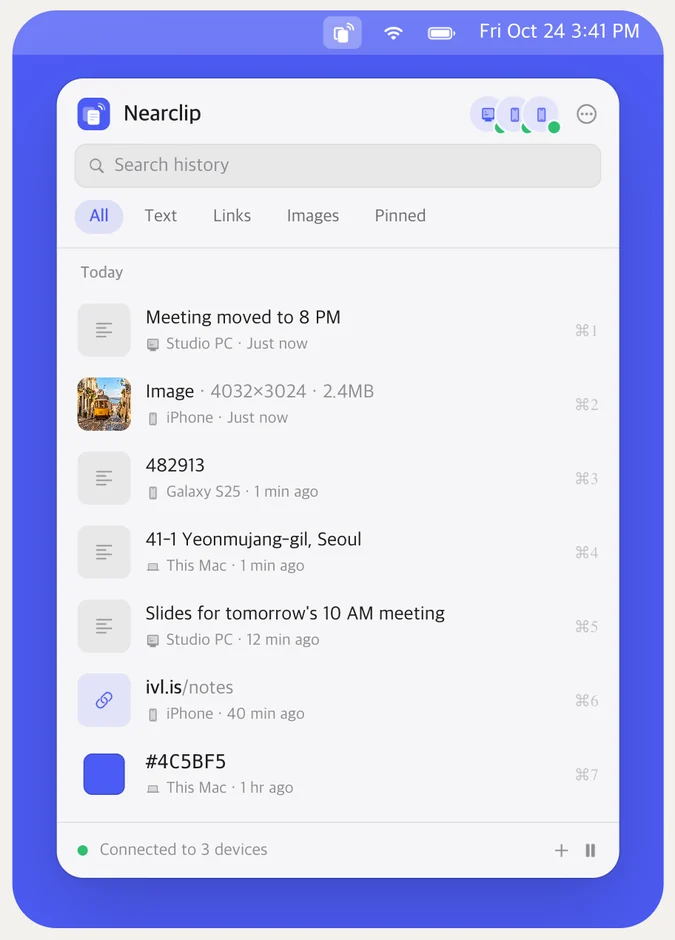
- Copy as usual — it's already on your other devices
- ⌃⌘V opens a Spotlight-style history panel
- Liquid Glass on macOS 26, Apple silicon and Intel
One clipboard for every device you own, whoever made it. Copy on your Mac, paste on your Windows PC, Galaxy or iPhone — with no account, no server and end-to-end encryption.
Try it: press ⌘C, Ctrl C, Send or Paste on any device.
01Across ecosystems
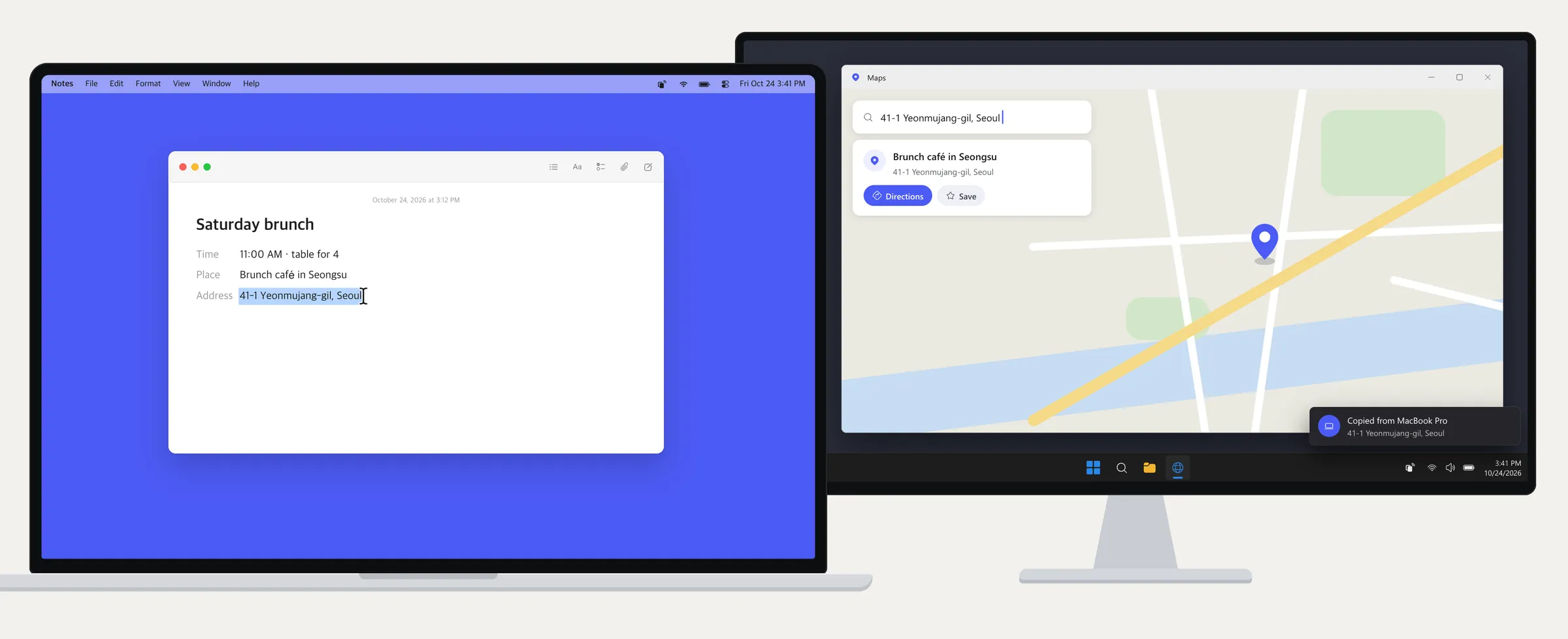
Mac and iPhone already share a clipboard, and so do some Windows PCs and Android phones. That's four of the twelve ways your devices can pair up. Nearclip connects all twelve, in both directions.
12/ 12
All twelve, in both directions — every device with every device.
| Copy on ↓ Paste on → | Mac | Windows | Android | iPhone |
|---|---|---|---|---|
| Mac | Same platform | Doesn't connectNearclip | Doesn't connectNearclip | Universal ClipboardNearclip |
| Windows | Doesn't connectNearclip | Same platform | Phone Link, some phonesNearclip | Doesn't connectNearclip |
| Android | Doesn't connectNearclip | Phone Link, some phonesNearclip | Same platform | Doesn't connectNearclip |
| iPhone | Universal ClipboardNearclip | Doesn't connectNearclip | Doesn't connectNearclip | Same platform |
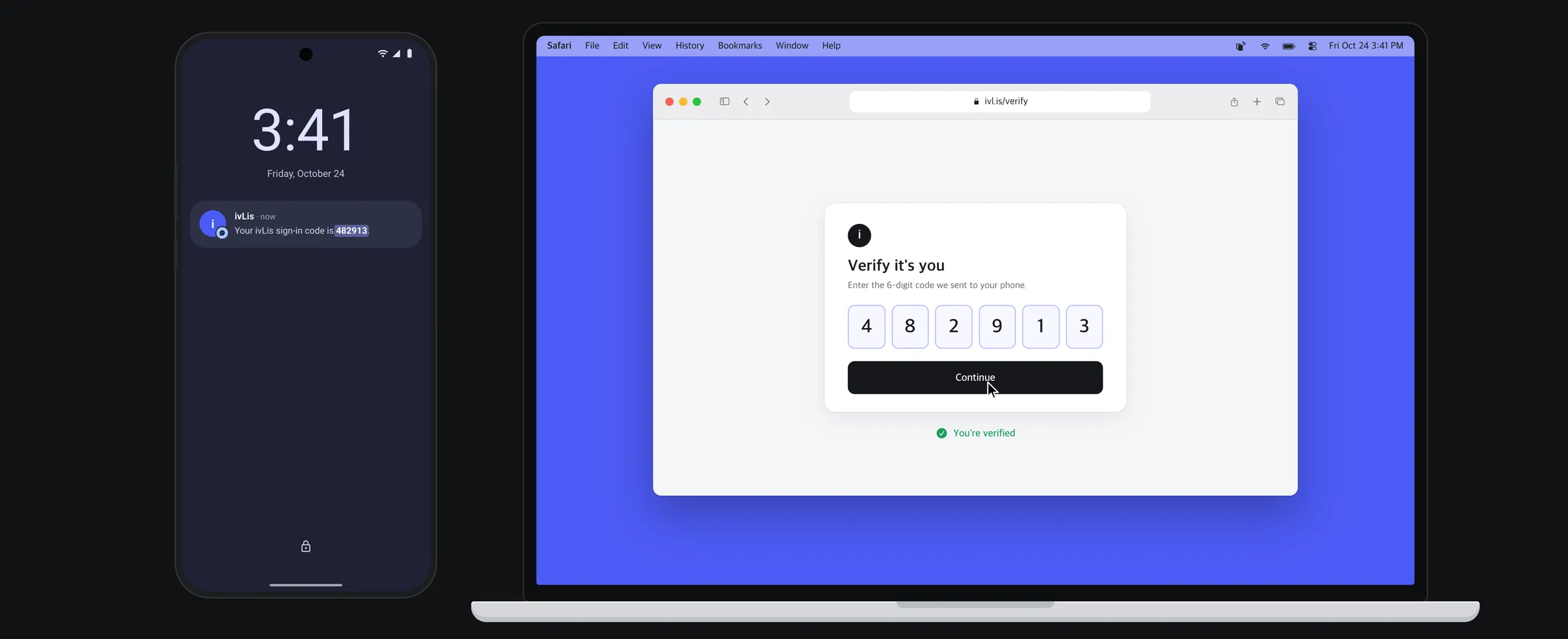
Three of them, from the film
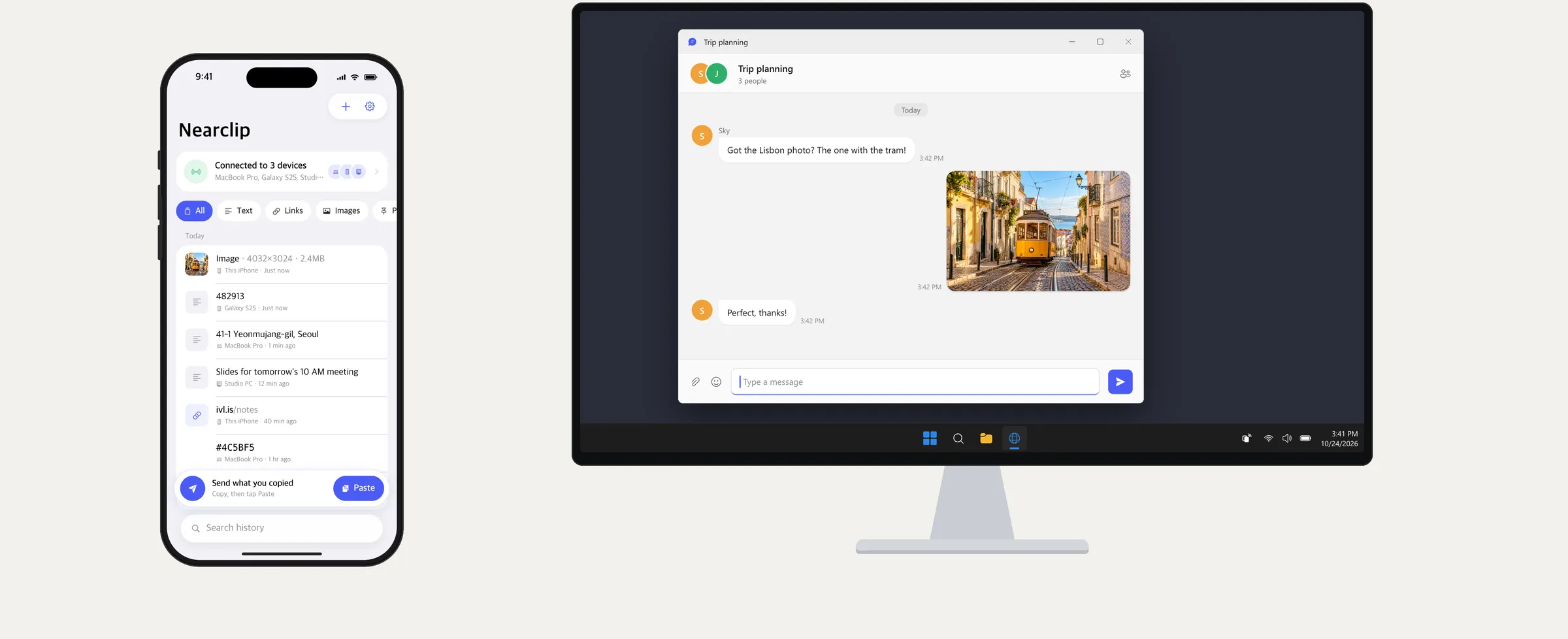
02Film
03How it works
No sign-up, no cables, no cloud. Your devices find each other on your Wi-Fi and talk directly.
Mac, Windows PC, Android phone, iPhone and iPad. Four native apps, all free.
Scan the QR code with your phone, or check that both computers show the same 6-digit code.
On a computer, copying is all it takes. On a phone it's one tap — iOS and Android keep the clipboard from apps in the background.
04New in 1.1
A text message or KakaoTalk brings a verification code, and your computer asks “Copy it?” — nothing to tap on the phone. Only the code travels; the message stays where it is.
05Four native apps
No Electron, no web views. Swift on Apple devices, WinUI 3 on Windows, Jetpack Compose on Android — each one where you'd expect it, with the same history inside.
Menu bar app · macOS 14+
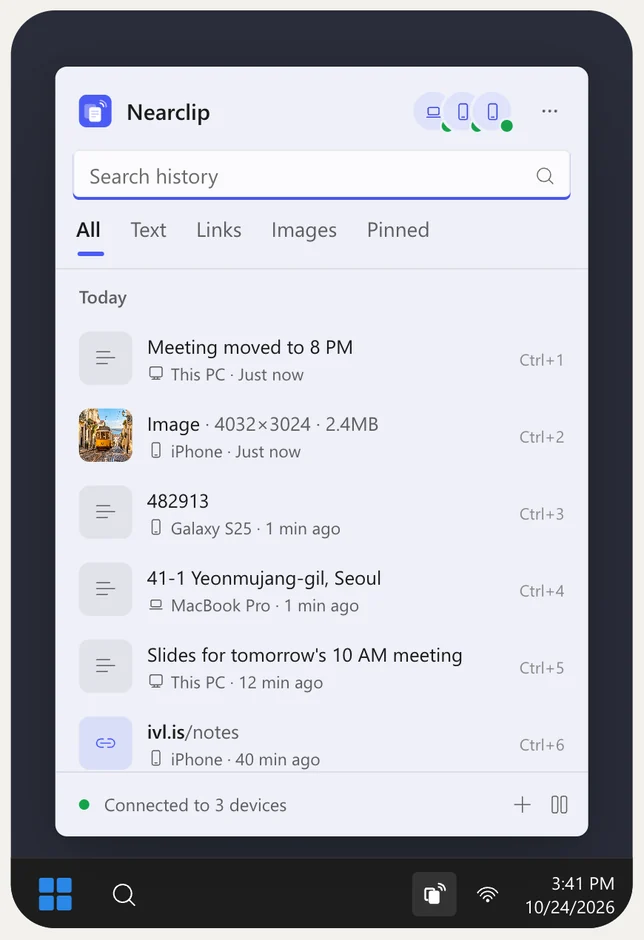
Tray app · Windows 10 1809+ and 11
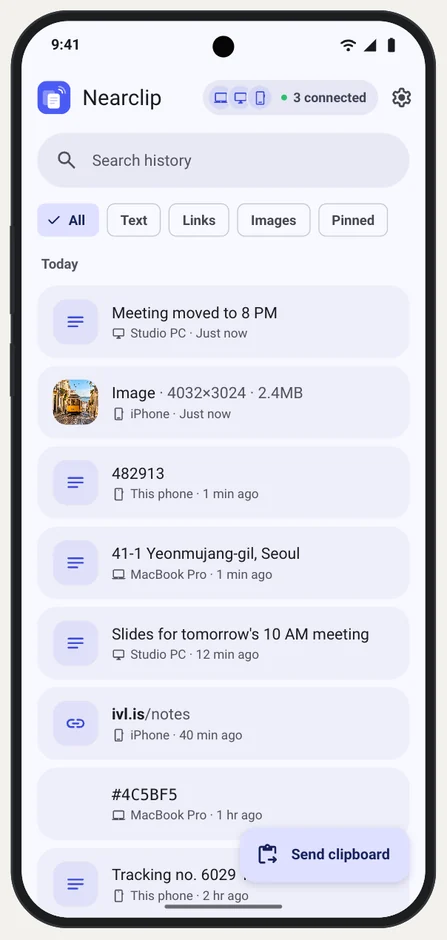
Material You · Android 8+
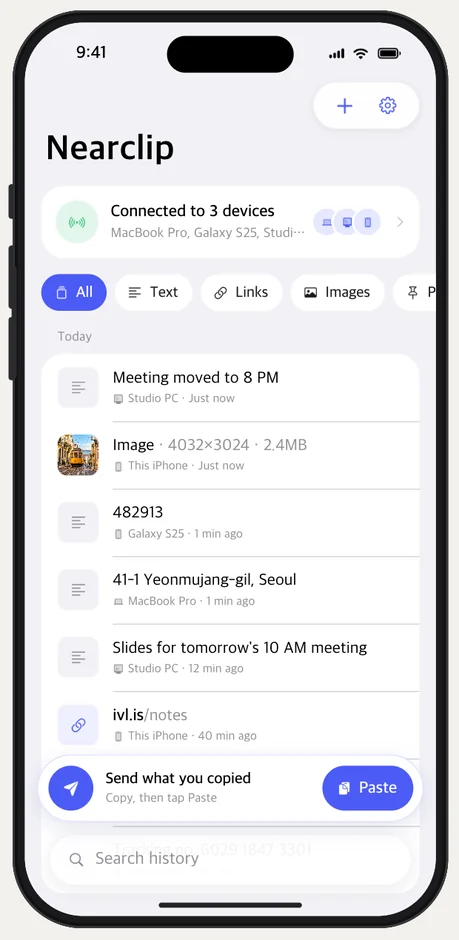
SwiftUI · iOS 17+
06The details
Everything you copy lands where you need it, and you always know where it came from.
Copy a large image and your other devices show it coming at once — size and progress first, then the picture, ready to paste. Up to 32 MB.
Search it, filter it, pin what you reuse. Delete a clip once and it's gone from all of them.
A device that was asleep or away gets the last 7 days the moment it's back.
Every device passes clips on to the others, so partly connected networks still stay in sync.
Anything your password manager marks private is never synced. Ignore apps or pause anytime.
⌃⌘V on a Mac, Win Alt V on Windows: find a clip, press Return, done.
Plain text up to 4 MB, links, colors and pictures, with a preview of each.
"Copied from iPhone" — a quiet note tells you every time a clip arrives.
Light and dark, English and Korean, and each platform's own look and controls.
MIT licensed. Read the protocol, run the tests, build it yourself.
07Privacy
Nearclip has no cloud, no account and no analytics. Your clips travel from your device to your device, encrypted with keys only they hold.
Readable on both ends. Gibberish in between.
Devices find each other on your network (Bonjour / mDNS) and connect directly.
Fresh keys for every connection (P-256 ECDH, AES-256-GCM): even recorded traffic stays unreadable.
A QR code or a 6-digit code you compare. A device in the middle can't fake a match.
Remove a clip, clear history or leave the group — it applies on every device.
Remote connection
Turn on Remote connection and sign in with the same free Tailscale account on each device. Tailscale is built into Nearclip — nothing else to install, no VPN to set up.
08Download
Free on every platform. Install it on two devices and you're done.
macOS 14 or later · Apple silicon and Intel
Your deviceWindows 10 1809 or later, Windows 11
Your deviceAndroid 8 or later
Your deviceiOS 17 or later
Your device★Free and open source
Nearclip is free and open source — no ads, no subscription, no account. A star on GitHub is the simplest way to say thanks, and it helps more people find it.
Thank you for trying it.
09FAQ
Yes. No ads, no subscription, no account. It's open source under the MIT license.
No. On your network the devices connect directly. With Remote connection on, Tailscale may relay the connection when no direct path is possible — but it stays end-to-end encrypted, so only your devices can read it. Nearclip itself runs no server at all.
By default, yes. Turn on Remote connection in Settings and sign in with the same free Tailscale account on each device to sync across networks — home, office or mobile data.
iOS and Android 10+ don't let apps read the clipboard in the background. Receiving is automatic on Android; on iPhone it happens while Nearclip is open, and it catches up the moment you open it. On Android, optional instant capture with Shizuku can send text and links right after you copy them.
On Android, Nearclip reads new text messages and KakaoTalk notifications (with notification access) and sends only the 4–8 digit code; Android 15 and later ask you to allow it once in Settings. On iPhone, connect one Shortcuts automation to Send Verification Code. Your computers then ask “Copy it?” — nothing is pasted on its own.
Items your password manager marks as private are never synced. On a computer you can also ignore whole apps, and every device can pause syncing.
Text up to 4 MB and images up to 32 MB. Big images show a progress bar on your other devices as soon as you copy.
Guest and office Wi-Fi often block device-to-device traffic. Try Connect by address in Add device, or turn on Remote connection. On Windows, make sure Nearclip is allowed on private networks.
It's on its way to the App Store. Until then, download the IPA and install it with AltStore or SideStore, or build it from source with Xcode — the README walks you through both.